MICROSOFT NAVISION format
Introduction
This article provides detailed instructions for configuring the expense export for your expense claims.
The aim is to enable you to configure or know how to modify the data appearing in the export file generated by Eurécia and intended for your accounting software.
Prerequisites
The export file contains 8 fields, one of which requires prior configuration.
- You must enter the employee number in the employee record.
Configuration
Access: Admin area > General settings > Employee record

The procedure is complete
 The export described in this guide allows you to send all the information required for accounting to Microsoft Navision.
File format
- Text file (CSV extension)
- Separator: ;
- Decimal separator: comma
File contents
| Document no. | Expense claim number |
| Code (Expense types table) | Account entered in the expense type |
| Description | Surname - First name Expense claim period (that of the claim) |
| Analytical code (employee table) | |
| Analytical code 2 (employee table) | |
| Amount | Amount |
| Employee number | Employee number |
| Comment |
File examples
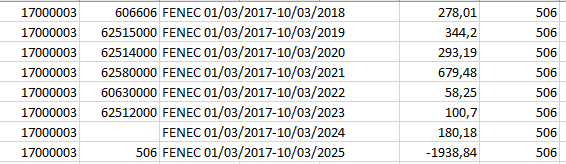

Comments
Please sign in to leave a comment.