Format MICROSOFT NAVISION XLS
Introduction
This article provides detailed instructions for configuring the expense export for your expense claims.
The aim is to enable you to configure or find out how to modify the data appearing in the export file generated by Eurécia and intended for your accounting software.
Prerequisites
The export file contains 22 fields, three of which require prior configuration.
- You must configure the additional fields in the employee records.
- You must configure the additional fields in the analytical dimensions.
Configuration
Access: Admin area > General settings > Employee record -> Employment tab
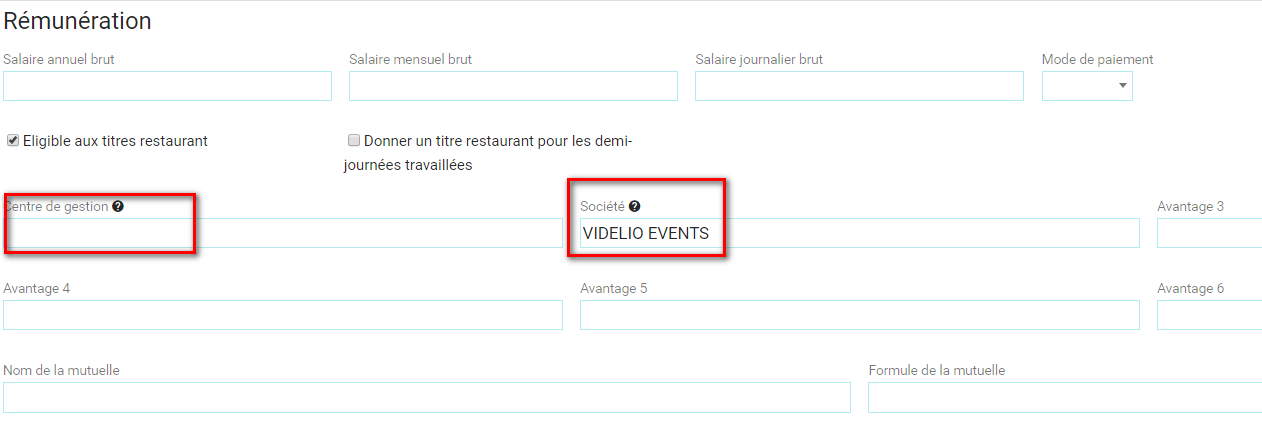
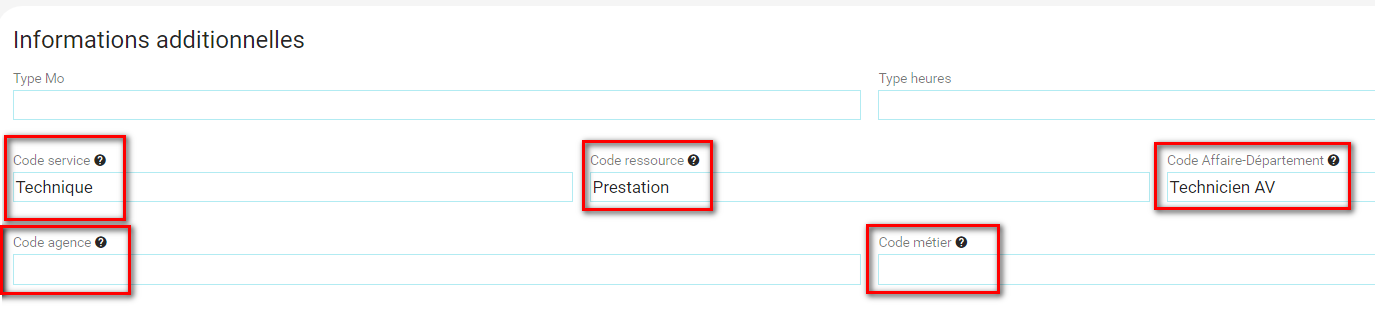
1. You need to complete the fields outlined in red in the employee records.
Access: Admin area > General settings > Analytical dimensions
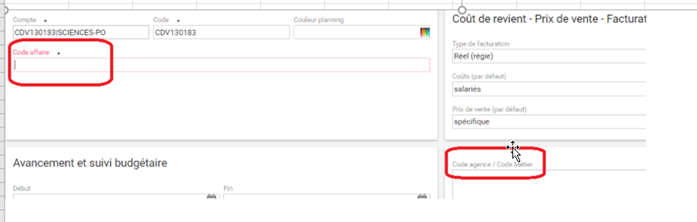
2. You need to complete the fields outlined in red in the analytical dimensions.
The procedure is complete
 The export described in this guide allows all the items required for accounting to be sent to Microsoft Navision XLS.
File format
- Excel file (XLS extension)
- Decimal separator: comma
Header row
A header row will be included in the file and will contain the column labels
File contents
| Type | Default posting entry |
| Management centre | Populate using the "benefit 1" field in the employee record, renamed "Management centre". Populate on all lines of the expense claim |
| Posting date | Date of the export. |
| Document date | Expense date entered in the expense claim dd/mm/yyyy |
| Document type | 2 by default |
| Document no. | Expense claim number |
| External document no. | Blank |
| Account type |
"2" for employee third-party accounts. "0" for the expense accounts in the reimbursement scale |
| Account no. | No VAT account, only expense accounts (reimbursement scale) and third-party accounts (employee record). |
| Description | Eurécia label (maximum 30 characters instead of 40). Exclude special characters (-.;":!'_\ / #*...) |
| Currency code | Blank |
| Debit amount | Amount including VAT |
| Credit amount | Amount including VAT |
| Agency code |
"For expense accounts: If the account code of analytical dimension 1 associated with the expense does not begin with ""CV"" or ""CS"" or ""DEV"" or ""CM"", populate using additional field 4, renamed ""agency code"", from the employee record.
Populate all lines of the expense
|
| Service code | Populate using additional field 1 from the employee record. |
| Case code |
"If the account code of analytical dimension 1 associated with the expense does not begin with ""CV"" or ""CS"" or ""DEV"" or ""CM"", populate using ""additional field 3"", renamed ""department case code"", from the employee record.
|
| Business code |
"If the account code of analytical dimension 1 associated with the expense does not begin with ""CV"" or ""CS"" or ""DEV"" or ""CM"", populate using additional field 5, renamed ""business code"", from the employee record.
For third-party accounts: use additional field 5, renamed ""business code"", from the employee record. " |
| Customer code | Blank |
| Supplier code | SAL by default |
| Product code | Blank |
| Resource code | Populate using additional field 2 from the employee record |
| VAT % |
VAT code present in the reimbursement profile (""supplementary code"" column). Populate only the expense account lines (not the third-party accounts). Same as column ""P"" |
File examples


Comments
Please sign in to leave a comment.